Warehouse Diary
Instruction Manual — Booking, tracking, and reporting warehouse movements
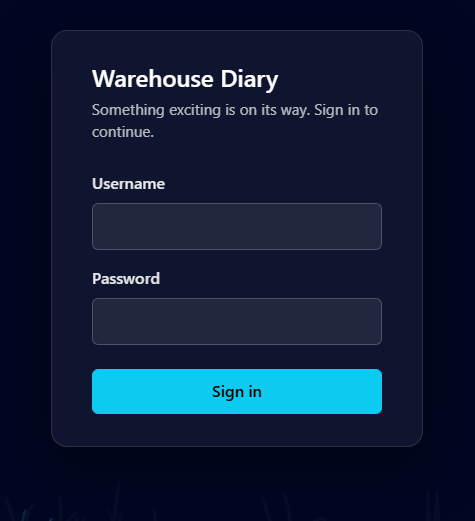
1. Logging in
- Open the Warehouse Diary URL in your browser.
- Enter your username and password, then click Login.
- If that user is already logged in elsewhere, you may be asked whether to take over the existing session (which logs the other session out).
2. Main diary screen
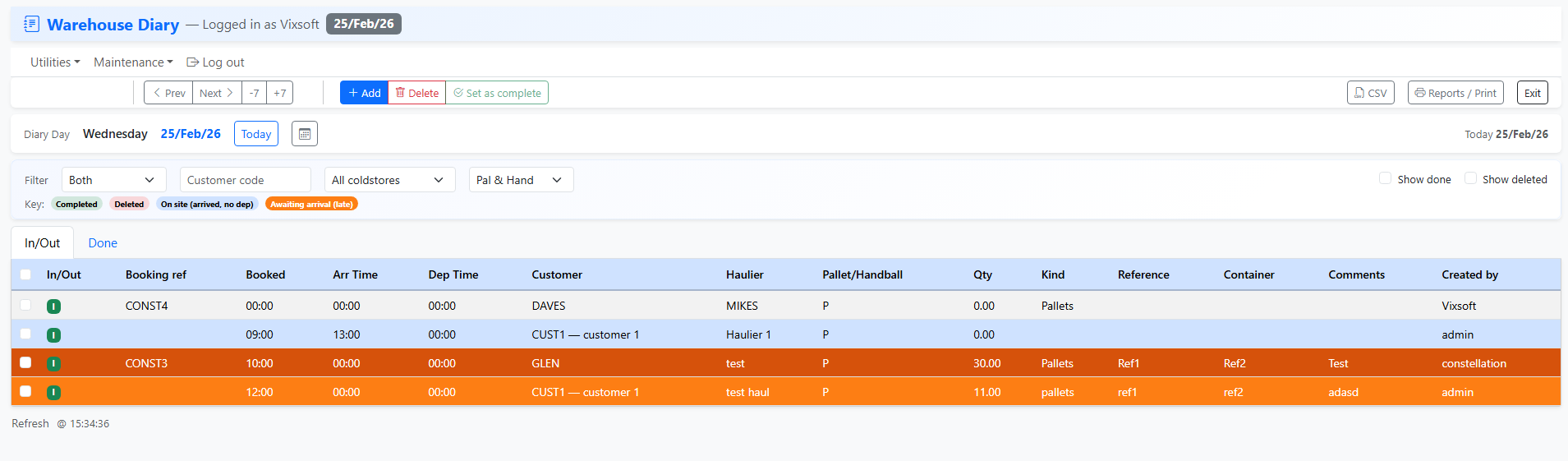
After login you see:
- Header — Title “Warehouse Diary”, logged-in user name, and current date.
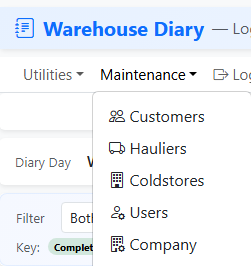
- Menu bar — Utilities (Move, Copy), Maintenance (Customers, Hauliers, Coldstores; admins also see Users, Company), Log out.
- Toolbar — Date navigation (Prev/Next, -7/+7, Today, calendar), Add, Delete, Set as complete, CSV, Reports / Print, Exit.
- Date bar — Diary day and date; use Today or the calendar to change date.
- Filter area — Inline filters (Direction, Customer, Coldstore, Method, Show done, Show deleted).
- Tabs — In/Out (live jobs) and Done (completed jobs).
- Diary grid — Table of jobs with checkboxes, In/Out, Booking ref, times, customer, haulier, qty, trip number, references, comments, created by.
3. Filtering the diary
Inline filters (above the grid) apply to the current diary date:
- Direction — Both, In, or Out.
- Customer — Type or select a customer code.
- Coldstore — All coldstores or a specific one.
- Method — Pal & Hand, Pal, or Handball.
- Show done — When ticked, completed jobs appear in the In/Out tab as well.
- Show deleted — When ticked, deleted jobs appear in the grid.

4. Understanding the diary grid
Columns
- Checkbox (for bulk actions)
- In/Out — I (green) or O (red)
- Booking ref — Auto-generated (e.g. CONST333)
- Booked, Arr Time, Dep Time
- Customer (code and name), Haulier
- Pallet/Handball (P or H), Qty, Kind
- Reference, Container
- Comments — For deleted jobs, the delete reason; if longer than 20 characters, first 20 chars plus a More button to view full text in a popup.
- Created by
Row colours
Clicking More in the Comments column opens a small modal with the full reason or comments.
5. Adding a diary event
- Click Add.
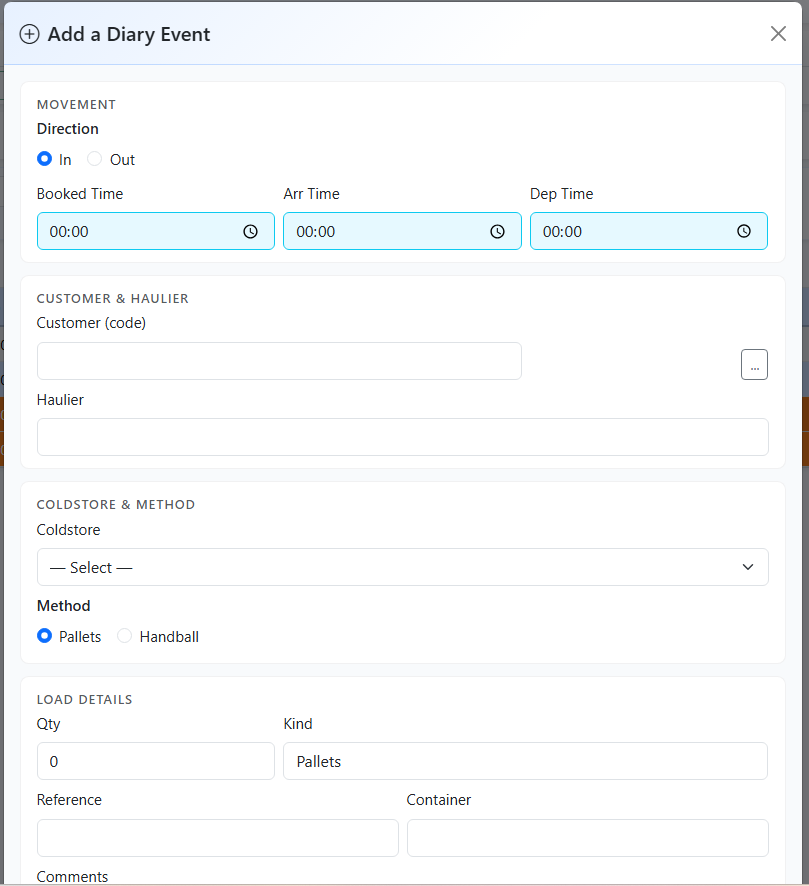
- Fill in the form.
Movement
- Direction — In or Out.
- Booked Time — Required for new entries.
- Arr Time, Dep Time — Optional; often filled when the job happens.
Customer & Haulier
- Customer (code) — Required; type or select. Name appears when recognised.
- Haulier — Free text or select from list.
Coldstore & Method
- Coldstore — Select from list.
- Method — Pallets or Handball.
Load details
- Qty, Trip Number, Reference, Container, Comments.
Click OK to save. A new row appears with an auto-generated Booking ref.
6. Booking reference (auto-generated)
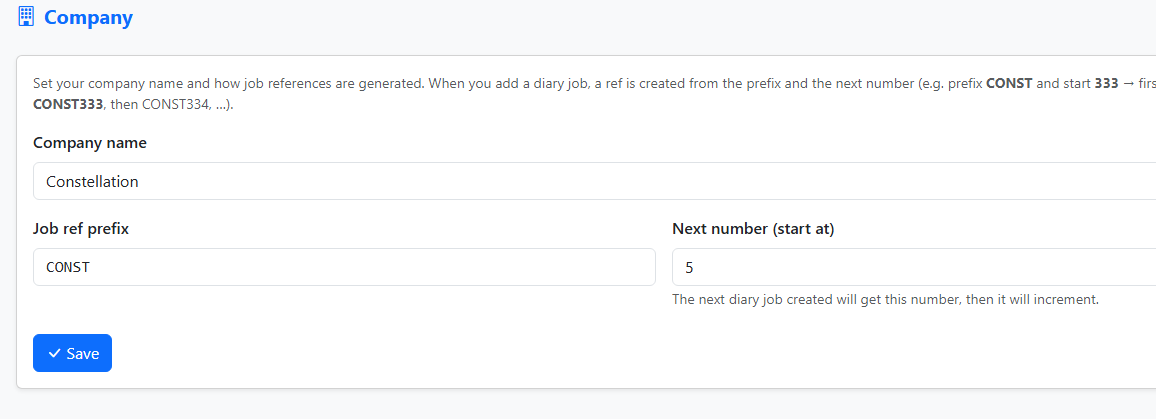
- Every new diary job gets a Booking ref from Prefix (e.g. CONST) + Next number (e.g. 333) → CONST333, CONST334, …
- Admins set these in Maintenance → Company: Company name, Job ref prefix, Next number (start at).
- The ref appears in the grid, CSV export, activity logs, and reports.
7. Editing, completing, and deleting jobs
Editing
Double-click a row. The Add/Edit form opens with that job’s data. Change fields and click OK.
Completing
- Single — Edit and fill Arr and Dep times, or select the row and use Set as complete.
- Bulk — Select several rows (checkboxes), click Set as complete, set dep times in the modal, then confirm.
Deleting
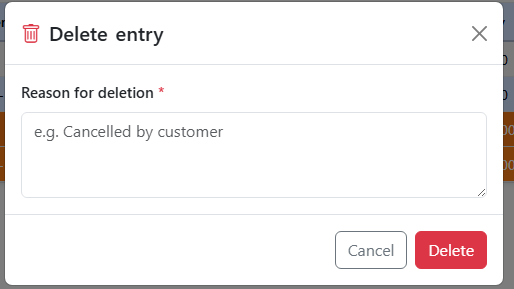
Select one or more rows, click Delete, enter a reason (required), and confirm. The job is marked deleted (status D); the reason is stored and shown in the Comments column (truncated with More for full text). Deleted rows are not removed from the database.
8. In/Out and Done tabs
- In/Out — Live/active jobs. With Show done ticked, completed jobs also appear here.
- Done — Only jobs that are complete (status C or all three times filled).
What you see in the grid (and export to CSV) depends on the active tab and filter settings.
9. CSV export
Click CSV on the toolbar. The CSV contains exactly what is currently shown in the table:
- On In/Out tab: if Show done is off, only active jobs; if on, active and done; if Show deleted is on, deleted jobs in view are included.
- On Done tab: only done jobs.
Columns: Date, Booked, Arr, Dep, In/Out, Booking Ref, Customer, Customer Name, Haulier, Pal/Hand, Qty, Kind, Reference, Container, Status, Coldstore, Created By.
10. Reports and printing
- Click Reports / Print.
- Set Start Date and Last Date (e.g. a month).
- Choose Include Completed and Include Deleted as needed.
- Report Type examples: Booked Time (use Book Time e.g. 09:00 to show only jobs booked at that time), Arrived Time, Customer, Unique, Ref 1, Ref 2, Late / Exceptions, Dwell / Turnaround, Summary, Haulier, Coldstore, Billing, Incomplete.
- Preview opens the report in a new tab; Print can auto-open the print dialog.
All report types respect the date range and include the Booking ref column in detail reports where applicable.
11. Maintenance
- Customers — Maintain customer codes and names (used in diary and filters).
- Hauliers — Maintain haulier names.
- Coldstores — Maintain coldstore codes/names.
- Company (admin) — Company name and Booking ref settings (prefix, next number).
- Users (admin) — User accounts and admin rights.
12. Troubleshooting and tips
- No rows for the date — Check inline filters (Direction, Customer, Coldstore, Method, Show done, Show deleted).
- Cannot add job — Ensure Booked Time and Customer are filled.
- Booking refs wrong or missing — Check Maintenance → Company (prefix and next number).
- "Maximum concurrent users" — A license increase may be required.